> ## Documentation Index
> Fetch the complete documentation index at: https://docs.beyondwords.io/llms.txt
> Use this file to discover all available pages before exploring further.
# Audio articles
> Learn how to manage your audio articles in BeyondWords
## Overview
Audio articles are the core content type in BeyondWords. Each article can also have an **audio summary**, **video article**, and **video summary** associated with it.
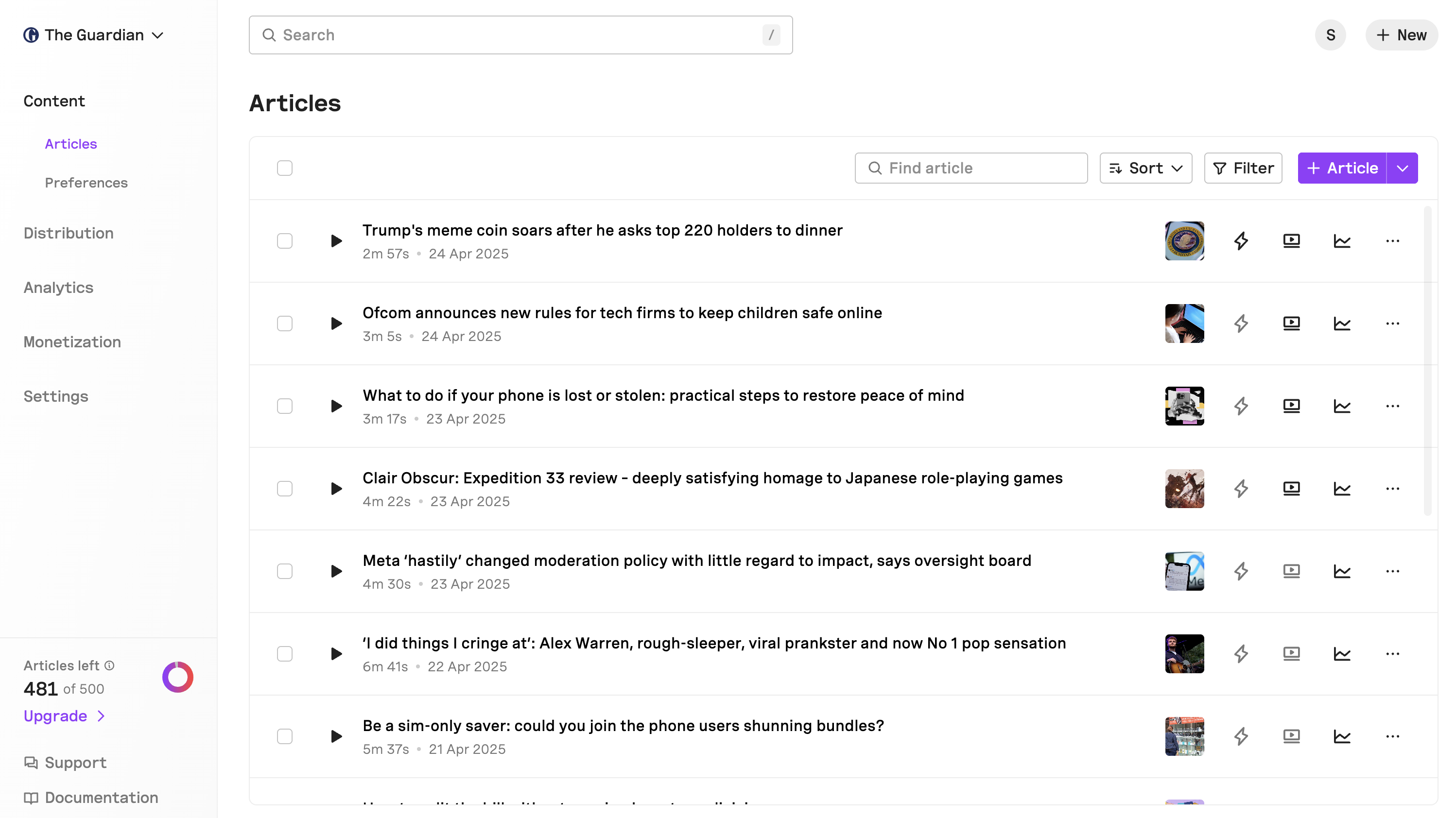
In the **Articles** section you will see a list of all your audio articles ordered by the date that they were published. For each article you will be able to see the **Title**, **Duration**, **Publication date**, **Feature image**, **Visibility status**, whether it has a **summary** and or **video**, and a direct link to **analytics**.
 ## Import via URL
You can import an article directly into the Editor using the **Import from URL** feature.
1. Click the dropdown arrow (`v`) next to **+ Article** in the top-right corner.
2. Select **Import from URL**.
3. Paste the URL of the article you’d like to import and click **Continue**.
4. Once imported, the article will open in the **Editor**, where it can be edited and generated for audio.
## Article actions
For each article you can do the following by clicking on the **⋯** button:
### Edit the article
This will open the **Editor** where you can edit the article content.
### Regenerate the audio
This will regenerate the audio for the article. Useful for applying new custom pronunciations.
### Replace the audio
This lets you replace the AI-generated audio with a human-recorded version.
### Duplicate the article
This will create a new draft copy of the article that you can edit.
### Download the audio
This will download the audio file for the article.
### Get the embed code
This will open a modal where you can demo the audio in the player and also copy the player embed code.
### Copy the shareable URL
This will copy a URL that you can share with others to listen to the article.
### Copy the identifiers
Here you can copy the **Content ID**, **Source ID**, or **Source URL** for the article.
### Set the visibility
This will toggle the visibility of the article between **Public** and **Private**.
### Delete the article
This will delete the article from your project.
## Summaries
Click the summary icon to generate an audio summary for the article. If a summary already exists, a dialog will open where you can copy the player embed code with the summary or download the summary audio.
## Article videos
Click the video icon to generate a video for the article. If a video already exists, a dialog will open where you can copy the player embed code with the video or download the video.
## Sorting and Filtering
You can search your articles using:
* **Sort by**: Status, Creation Date, Duration, or Published Date
* **Filter by**: Status, Created Date, or Visibility
## Bulk actions
Apply changes to multiple articles at once:
* **Regenerate** audio for multiple articles (useful when updating pronunciations)
* **Set visibility** (Public or Private)
* **Delete** multiple articles
## Import via URL
You can import an article directly into the Editor using the **Import from URL** feature.
1. Click the dropdown arrow (`v`) next to **+ Article** in the top-right corner.
2. Select **Import from URL**.
3. Paste the URL of the article you’d like to import and click **Continue**.
4. Once imported, the article will open in the **Editor**, where it can be edited and generated for audio.
## Article actions
For each article you can do the following by clicking on the **⋯** button:
### Edit the article
This will open the **Editor** where you can edit the article content.
### Regenerate the audio
This will regenerate the audio for the article. Useful for applying new custom pronunciations.
### Replace the audio
This lets you replace the AI-generated audio with a human-recorded version.
### Duplicate the article
This will create a new draft copy of the article that you can edit.
### Download the audio
This will download the audio file for the article.
### Get the embed code
This will open a modal where you can demo the audio in the player and also copy the player embed code.
### Copy the shareable URL
This will copy a URL that you can share with others to listen to the article.
### Copy the identifiers
Here you can copy the **Content ID**, **Source ID**, or **Source URL** for the article.
### Set the visibility
This will toggle the visibility of the article between **Public** and **Private**.
### Delete the article
This will delete the article from your project.
## Summaries
Click the summary icon to generate an audio summary for the article. If a summary already exists, a dialog will open where you can copy the player embed code with the summary or download the summary audio.
## Article videos
Click the video icon to generate a video for the article. If a video already exists, a dialog will open where you can copy the player embed code with the video or download the video.
## Sorting and Filtering
You can search your articles using:
* **Sort by**: Status, Creation Date, Duration, or Published Date
* **Filter by**: Status, Created Date, or Visibility
## Bulk actions
Apply changes to multiple articles at once:
* **Regenerate** audio for multiple articles (useful when updating pronunciations)
* **Set visibility** (Public or Private)
* **Delete** multiple articles