> ## Documentation Index
> Fetch the complete documentation index at: https://docs.beyondwords.io/llms.txt
> Use this file to discover all available pages before exploring further.
# Background music
> Learn how to add background music to your audio articles with BeyondWords
## Overview
You can include background music automatically whenever an audio article is created or manually add it to each article.
 ## Include background music on all articles
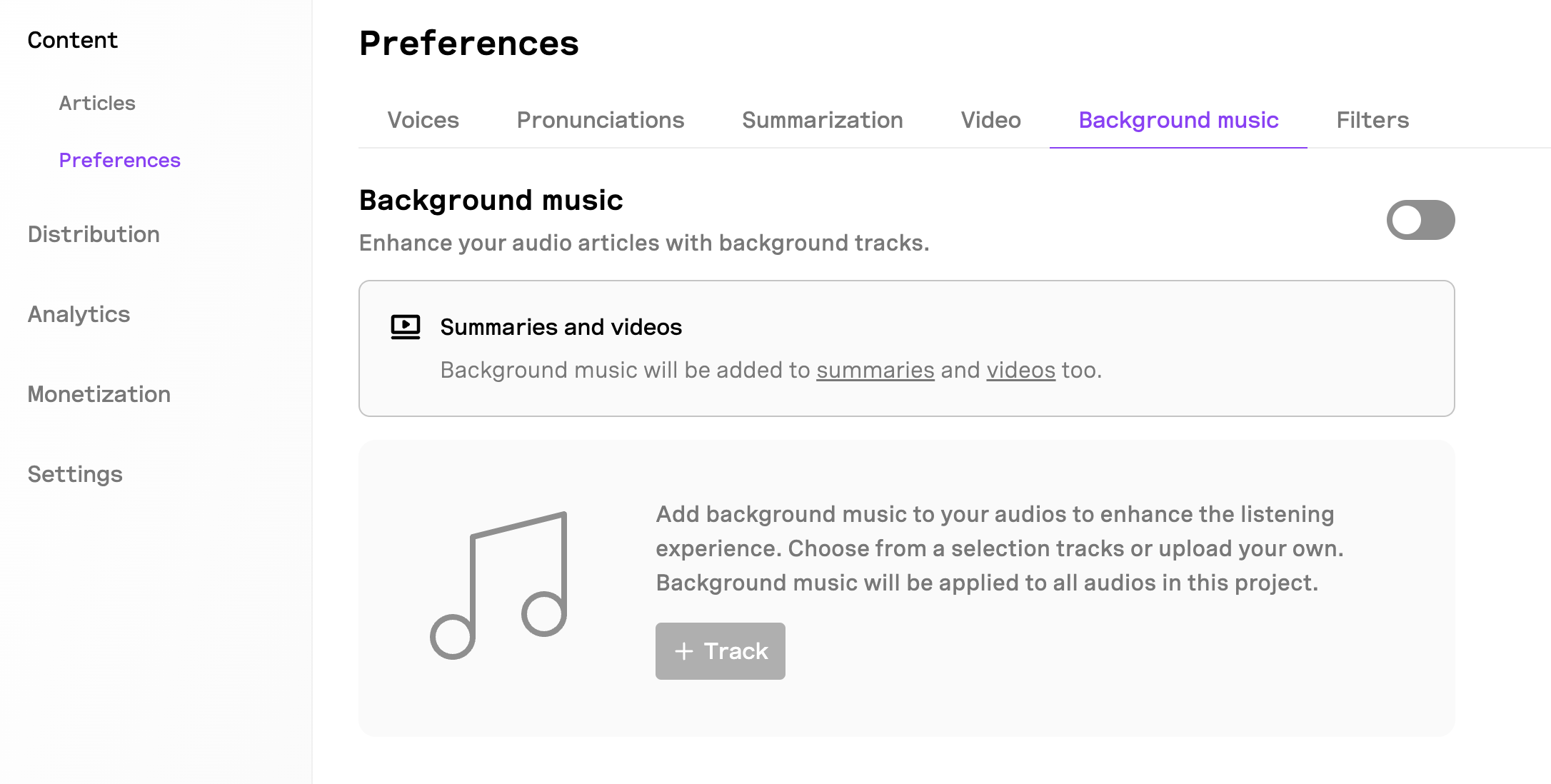
Go to the **Background music** tab in the **Content** section and enable background music.
Click the **+ Track** button, upload a background track, give it a name, set the volume, and scope.
Set the default background track to be used for all articles.
Click **Save** to apply your changes. Moving forward, the background track will be added automatically to all new audio articles.
To include the background track on existing articles, manually update them in the **Editor** or by clicking **Regenerate**. Otherwise, background music will only be added to new articles.
## Add background music to a specific article
Go to the **Articles** section and locate the article you want to add background music to.
* Click the **⋯** button next to the article and then click **Edit**.
* This will open the **Editor**.
* Click the **Background music** tab.
Turn on background music and select the background track you want to use.
If you don't see the background track you want to use, you will need to upload it first in the **Background music** tab in the **Content** section.
Click **Update** to save changes and add the background music.
## Include background music on all articles
Go to the **Background music** tab in the **Content** section and enable background music.
Click the **+ Track** button, upload a background track, give it a name, set the volume, and scope.
Set the default background track to be used for all articles.
Click **Save** to apply your changes. Moving forward, the background track will be added automatically to all new audio articles.
To include the background track on existing articles, manually update them in the **Editor** or by clicking **Regenerate**. Otherwise, background music will only be added to new articles.
## Add background music to a specific article
Go to the **Articles** section and locate the article you want to add background music to.
* Click the **⋯** button next to the article and then click **Edit**.
* This will open the **Editor**.
* Click the **Background music** tab.
Turn on background music and select the background track you want to use.
If you don't see the background track you want to use, you will need to upload it first in the **Background music** tab in the **Content** section.
Click **Update** to save changes and add the background music.