> ## Documentation Index
> Fetch the complete documentation index at: https://docs.beyondwords.io/llms.txt
> Use this file to discover all available pages before exploring further.
# Pronunciations
> Learn how to customize the pronunciation of words in your articles with BeyondWords
## Overview
You can customize how words are pronounced in your audio articles by adding **Pronunciations**. These rules ensure names, acronyms, and industry-specific terms sound just right.
 ## Create a pronunciation rule
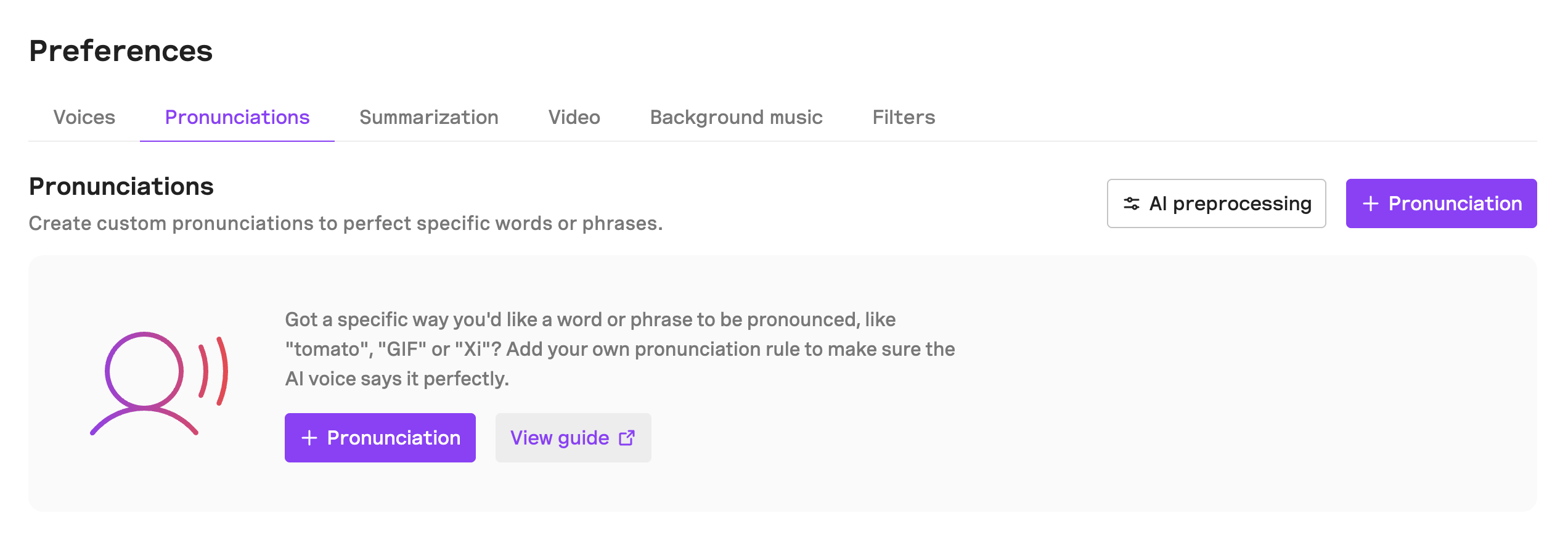
To get started, you can either create pronunciations from the Pronunciations section of your project or through the Editor.
1. **Pronunciations tab** - Go to **Project > Content > Preferences** and click **+ Pronunciation**.
2. **Editor** - Highlight the word or phrase you want to add a pronunciation for and click **+ Pronunciation**.
Select the type of pronunciation rule you want to create:
* **Substitute** – Replace a word with an alternative word or phrase.
* **Say as Word** – Force an acronym to be pronounced as a word.
* **Say as Letter Sequence** – Force an acronym to be pronounced as a sequence of letters.
* **Language** – Force a word to be pronounced in a target language.
* **Phonetic Spelling** – Customize the pronunciation of a word using a phonetic notation:
* **IPA (International Phonetic Alphabet)**
* **Jyutping (Cantonese Romanization)**
* **Pinyin (Mandarin Romanization)**
Specify the exact text the rule should apply to.
Depending on the pronunciation type, enter the substitute word, language, or phonetic spelling.
Choose which language the pronunciation rule should apply to.
Use a premade voice to preview the pronunciation.
At the moment, you cannot preview rules with custom voices.
Set where this pronunciation rule should apply:
* **All projects**: Use this pronunciation in all your projects.
* **This project only**: Use this pronunciation in this project only.
* **This article only**: Use this pronunciation in this article only.
Update past articles to apply the new pronunciation. Otherwise, the pronunciation will only apply to new articles.
You cannot add pronunciation rules for numbers on their own unless their scope is for a single article.
### Pronunciation types
#### Substitute
Create a **Substitute** pronunciation to replace a word with an alternative word.
> Expand an acronym into words e.g. "CO2" as "carbon dioxide", or get your preferred pronunciation with a re-write e.g. read "scone" as "scon". Correct a heteronym e.g. choose "reed" for "read" not "red".
#### Say as word
Create a **Say as word** pronunciation to force an acronym to be said as a word.
> Make sure a word is read as a word e.g. UNESCO as "Unesco" not "U N E S C O".
#### Say as letter sequence
Create a **Say as letter sequence** pronunciation to force an acronym to be pronounced as a sequence of letters.
> Read a word out letter by letter e.g. " IT" as "I T" not "it".
#### Language
Create a **Language** pronunciation to force a word to be pronounced in a target language.
> For multilingual voices, switch to a second language for greater pronunciation accuracy e.g. tag "Frittura di paranza" to be read in Italian.
Not all voices support the Language rule type yet. This pronunciation type is only available for multilingual voices.
#### Phonetic spelling
Create a **Phonetic spelling** pronunciation to define the pronunciation of a word using a notation type.
> Use the international phonetic alphabet to provide an exact pronunciation e.g. ˈniːs for Nice.
#### IPA
Select the IPA (international phonetic alphabet) notation type to force a word to be pronounced according to your preferences.
> Use IPA to provide an exact pronunciation e.g. ˈniːs for Nice.
To make it easier to create IPA pronunciations, you can use the Magic IPA tool by clicking the "Generate spelling" button.
#### Jyutping (Cantonese)
Select the Jyutping notation type to force a word to be pronounced according to your preferences.
#### Pinyin (Mandarin)
Select the Pinyin notation type to force a word to be pronounced according to your preferences.
## AI preprocessing (beta)
AI preprocessing automatically improves pronunciation by understanding the context of your article.
It better handles tricky content like dates, sports scores, and abbreviations.
It will also atuomatically detects foreign words and apply the correct language for accurate pronunciation.
Language detection is currently limited to German, with more languages planned in future updates.
#### Enabling preprocessing
**Project level**\
Go to **Project > Content > Preferences** and toggle **AI Preprocessing** on.
**Article level**\
Open the article in the **Editor** and toggle **AI Preprocessing** on in the **Pronunciations** tab in the sidebar.
## Create a pronunciation rule
To get started, you can either create pronunciations from the Pronunciations section of your project or through the Editor.
1. **Pronunciations tab** - Go to **Project > Content > Preferences** and click **+ Pronunciation**.
2. **Editor** - Highlight the word or phrase you want to add a pronunciation for and click **+ Pronunciation**.
Select the type of pronunciation rule you want to create:
* **Substitute** – Replace a word with an alternative word or phrase.
* **Say as Word** – Force an acronym to be pronounced as a word.
* **Say as Letter Sequence** – Force an acronym to be pronounced as a sequence of letters.
* **Language** – Force a word to be pronounced in a target language.
* **Phonetic Spelling** – Customize the pronunciation of a word using a phonetic notation:
* **IPA (International Phonetic Alphabet)**
* **Jyutping (Cantonese Romanization)**
* **Pinyin (Mandarin Romanization)**
Specify the exact text the rule should apply to.
Depending on the pronunciation type, enter the substitute word, language, or phonetic spelling.
Choose which language the pronunciation rule should apply to.
Use a premade voice to preview the pronunciation.
At the moment, you cannot preview rules with custom voices.
Set where this pronunciation rule should apply:
* **All projects**: Use this pronunciation in all your projects.
* **This project only**: Use this pronunciation in this project only.
* **This article only**: Use this pronunciation in this article only.
Update past articles to apply the new pronunciation. Otherwise, the pronunciation will only apply to new articles.
You cannot add pronunciation rules for numbers on their own unless their scope is for a single article.
### Pronunciation types
#### Substitute
Create a **Substitute** pronunciation to replace a word with an alternative word.
> Expand an acronym into words e.g. "CO2" as "carbon dioxide", or get your preferred pronunciation with a re-write e.g. read "scone" as "scon". Correct a heteronym e.g. choose "reed" for "read" not "red".
#### Say as word
Create a **Say as word** pronunciation to force an acronym to be said as a word.
> Make sure a word is read as a word e.g. UNESCO as "Unesco" not "U N E S C O".
#### Say as letter sequence
Create a **Say as letter sequence** pronunciation to force an acronym to be pronounced as a sequence of letters.
> Read a word out letter by letter e.g. " IT" as "I T" not "it".
#### Language
Create a **Language** pronunciation to force a word to be pronounced in a target language.
> For multilingual voices, switch to a second language for greater pronunciation accuracy e.g. tag "Frittura di paranza" to be read in Italian.
Not all voices support the Language rule type yet. This pronunciation type is only available for multilingual voices.
#### Phonetic spelling
Create a **Phonetic spelling** pronunciation to define the pronunciation of a word using a notation type.
> Use the international phonetic alphabet to provide an exact pronunciation e.g. ˈniːs for Nice.
#### IPA
Select the IPA (international phonetic alphabet) notation type to force a word to be pronounced according to your preferences.
> Use IPA to provide an exact pronunciation e.g. ˈniːs for Nice.
To make it easier to create IPA pronunciations, you can use the Magic IPA tool by clicking the "Generate spelling" button.
#### Jyutping (Cantonese)
Select the Jyutping notation type to force a word to be pronounced according to your preferences.
#### Pinyin (Mandarin)
Select the Pinyin notation type to force a word to be pronounced according to your preferences.
## AI preprocessing (beta)
AI preprocessing automatically improves pronunciation by understanding the context of your article.
It better handles tricky content like dates, sports scores, and abbreviations.
It will also atuomatically detects foreign words and apply the correct language for accurate pronunciation.
Language detection is currently limited to German, with more languages planned in future updates.
#### Enabling preprocessing
**Project level**\
Go to **Project > Content > Preferences** and toggle **AI Preprocessing** on.
**Article level**\
Open the article in the **Editor** and toggle **AI Preprocessing** on in the **Pronunciations** tab in the sidebar.