> ## Documentation Index
> Fetch the complete documentation index at: https://docs.beyondwords.io/llms.txt
> Use this file to discover all available pages before exploring further.
# Overview
> Get started with the BeyondWords player
## Overview
BeyondWords Player is the easiest way to add BeyondWords audios into your website or app.
It is a fully-featured audio player for content generated and hosted on BeyondWords. It is fully integrated with analytics and monetization features on BeyondWords without the need for any extra configuration.
Please note that the BeyondWords player is automatically installed if you are using any of the following integrations:
* Magic Embed
* WordPress
* Ghost
## Installation
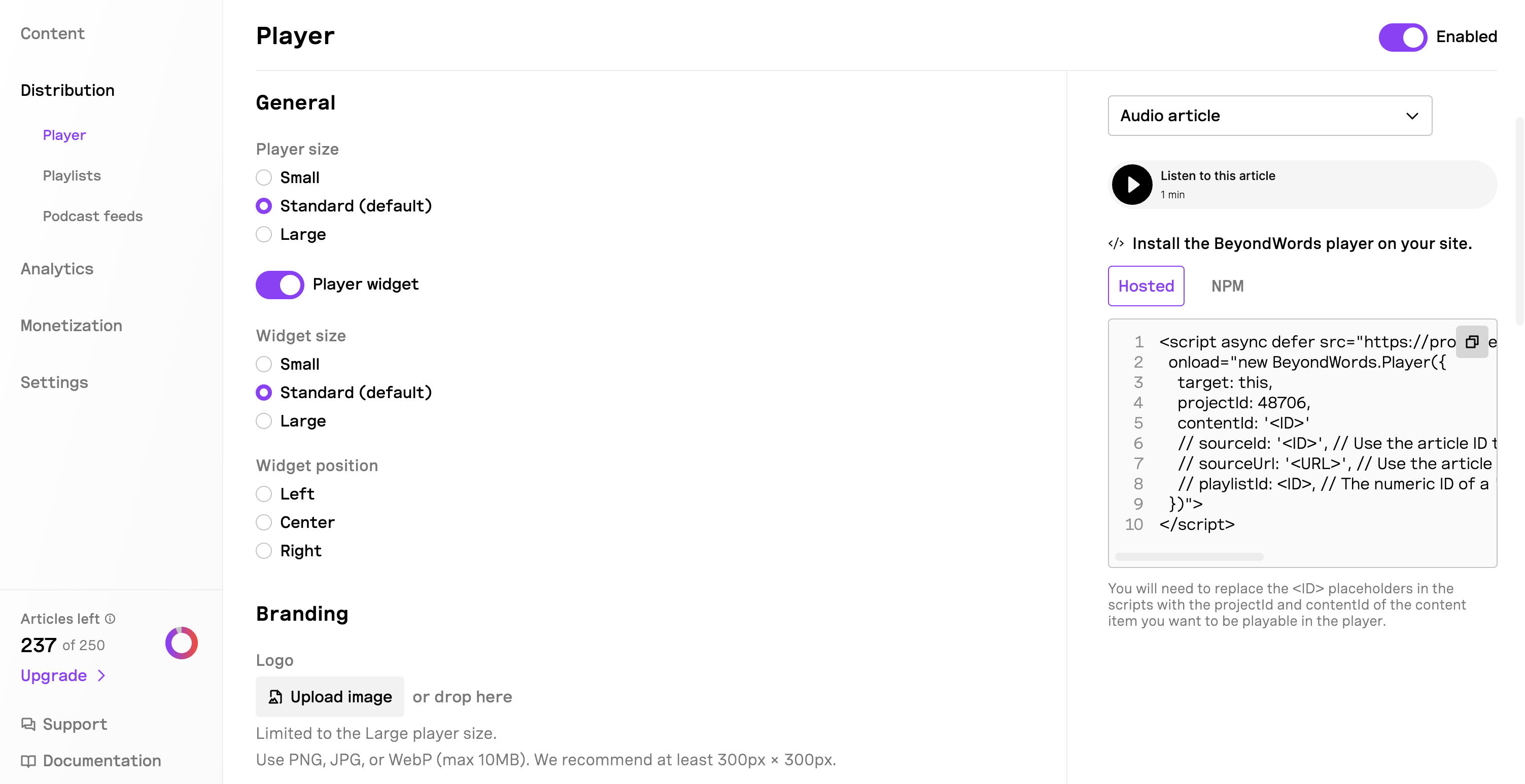
Choose one of the following methods to install the BeyondWords player:
### Install via embed script
Add the script in your web app:
```javascript theme={null}
```
You'll need to replace `` with your actual project ID and content ID. See the [Identifiers](#identifiers) section below for details on all available identifier options.
For production environments, consider specifying a fixed version instead of using `@latest` to ensure stability.
### Install via NPM
```javascript theme={null}
npm add @beyondwords/player
```
```javascript theme={null}
```
```javascript theme={null}
import BeyondWords from '@beyondwords/player';
new BeyondWords.Player({ target: '#beyondwords-player', projectId: , contentId: '' });
```
You'll need to replace `` with your actual project ID and content ID. See the [Identifiers](#identifiers) section below for details on all available identifier options.
## Identifiers
You will need to replace project `ID` and content `ID` with your `projectId` and `contentId`. You can use any of the following properties in conjunction with the `projectId` to initialize the player:
| **Property** | **Description** |
| ------------ | ------------------------------------------------------------------------------------------------------------------------------------------------------------------------------------------------- |
| `contentId` | Unique UUID string for the audio content. You can also pass the previous integer audio ID as a string for users migrating from the legacy API. |
| `sourceId` | The externally provided source identifier for a content item. This could be the ID from your CMS, the `` from an RSS ``, or the post ID if generated using the WordPress Plugin. |
| `sourceUrl` | The URL containing the source content. This could be the public URL submitted via the API, the `` from an RSS ``, or the post URL from the WordPress Plugin. |
| `playlistId` | The unique ID for a playlist created in the dashboard or through the API. |
## Advanced customization
For developers looking to build custom interfaces or use the player in headless mode, additional documentation is available on GitHub. This includes guides on:
* Building your own UI on top of the BeyondWords player
* Using the player SDK programmatically
* Implementing custom analytics
For complete documentation on advanced customization options, visit the [BeyondWords Player GitHub repository](https://github.com/beyondwords-io/player?tab=readme-ov-file).
## Next steps
After installing the player, you'll likely want to customize its appearance and behavior to match your brand and user experience requirements.
Configure your player's appearance, branding, and interactive features
Integrate the player in web applications
Integrate the player in iOS applications
Add the player to Android applications