> ## Documentation Index
> Fetch the complete documentation index at: https://docs.beyondwords.io/llms.txt
> Use this file to discover all available pages before exploring further.

# Playlists

> Create, curate, publish, and share audio or video playlists.

export const DynamicPlaylistDemo = () => {
  const ITEMS_KEY = "bw-playlist-items";
  const PROJECT_ID_KEY = "bw-project-id";
  const PROJECT_ID_DEFAULT = 9504;
  const ITEMS_DEFAULT = [{
    sourceId: "67ff73cc9476c4d9da026690"
  }, {
    contentId: "fab4bb2e-4903-4248-8062-0c7955603c15"
  }, {
    contentId: "e9536c9b-8d69-4195-9997-af7811b35276"
  }];
  const saveToStorage = (key, value) => {
    localStorage.setItem(key, JSON.stringify(value));
    return value;
  };
  const getFromStorage = key => {
    if (!key) return undefined;
    const items = localStorage.getItem(key);
    if (items) return JSON.parse(items);
    return undefined;
  };
  const [isReady, setIsReady] = useState(false);
  const [enteredId, setEnteredId] = useState("");
  const [loadedItems, setLoadedItems] = useState([]);
  const [inputType, setInputType] = useState("contentId");
  const [items, setItems] = useState(getFromStorage(ITEMS_KEY) || ITEMS_DEFAULT);
  const [projectId, setProjectId] = useState(getFromStorage(PROJECT_ID_KEY) || PROJECT_ID_DEFAULT);
  useEffect(() => {
    const handleReady = () => setIsReady(true);
    if (window.BeyondWords) handleReady(); else window.addEventListener("BeyondWordsReady", handleReady);
    return () => window.removeEventListener("BeyondWordsReady", handleReady);
  }, []);
  useEffect(() => {
    let player;
    if (!isReady) return;
    window.BeyondWords.Player.destroyAll();
    if (items.length) {
      player = new window.BeyondWords.Player({
        playlist: items,
        widgetStyle: "none",
        projectId: projectId,
        target: "#bw-playlist",
        analyticsConsent: "none"
      });
      player.addEventListener("ContentAvailable", () => {
        setLoadedItems(window.BeyondWords.Player.instances()[0].properties().content);
      });
    }
    return () => player?.destroy();
  }, [items, projectId, isReady]);
  if (!isReady) {
    return <div className="border p-4 rounded-xl font-bold text-center">
        Loading...
      </div>;
  }
  return <div className="border p-4 rounded-xl flex flex-col">
      <div className="mb-2.5 flex justify-between gap-1 md:items-center">
        <div className="flex gap-2">
          <span>Project ID: </span>
          <input type="text" value={projectId} placeholder="Project ID here" onChange={e => {
    const value = e.target.value;
    if (!(/^\d*$/).test(value) || value.length > 8) return;
    if (value !== getFromStorage(PROJECT_ID_KEY)) setItems(saveToStorage(ITEMS_KEY, []));
    setProjectId(saveToStorage(PROJECT_ID_KEY, value));
  }} className="px-2 py-1 text-xs border-2 rounded-md focus:outline-none focus:border-purple-600 max-sm:w-28" />
        </div>
        <select value={inputType} onChange={e => setInputType(e.target.value)} className="px-2 py-1 text-xs border-2 rounded-md focus:outline-none focus:border-purple-600">
          <option value="contentId">Content ID</option>
          <option value="sourceId">Source ID</option>
          <option value="sourceUrl">Source URL</option>
        </select>
      </div>
      <div className="mb-4 flex gap-2 max-sm:flex-col">
        <input type="text" value={enteredId} onChange={e => setEnteredId(e.target.value)} className="w-full px-2 py-1 border-2 rounded-md focus:outline-none focus:border-purple-600" placeholder={`Enter ${inputType === "contentId" ? "content ID" : inputType === "sourceId" ? "source ID" : "source URL"}`} />
        <div className="flex justify-center gap-2 max-sm:flex-row-reverse">
          <button onClick={() => {
    if (enteredId) {
      setEnteredId("");
      if (items.some(item => item[inputType] === enteredId)) window.alert("Identifier already added!"); else setItems(saveToStorage(ITEMS_KEY, [...items, {
        [inputType]: enteredId
      }]));
    }
  }} className="bg-black dark:bg-white font-bold text-white dark:text-black rounded-full px-4 py-1 max-sm:basis-1/2">
            Add
          </button>
          <button onClick={() => {
    setEnteredId("");
    setInputType("contentId");
    setItems(saveToStorage(ITEMS_KEY, ITEMS_DEFAULT));
    setProjectId(saveToStorage(PROJECT_ID_KEY, PROJECT_ID_DEFAULT));
  }} className="bg-black dark:bg-white font-bold text-white dark:text-black rounded-full px-4 py-1 max-sm:basis-1/2">
            Reset
          </button>
        </div>
      </div>
      <div id="bw-playlist"></div>
      {items.length > 0 && <>
          <div className="mt-4">
            <details className="border rounded-lg px-4 py-2 mb-2">
              <summary className="before:ml-1 cursor-pointer font-semibold">Added identifiers</summary>
              <p className="mb-4 block text-xs">Identifiers in red had some error while loading.</p>
              {items.map((item, index) => {
    const isError = loadedItems.length === 0 || !loadedItems.some(i => i.id === item.contentId || i.sourceId === item.sourceId || i.sourceUrl === item.sourceUrl);
    return <p key={index} className="mb-2 block text-sm text-gray-600">
                    <code className={isError ? "text-red-600 dark:text-red-300" : undefined}>
                      {item.contentId || item.sourceId || item.sourceUrl}
                    </code>
                    {item.contentId && <span className="dark:text-gray-200"> (as content ID)</span>}
                    {item.sourceId && <span className="dark:text-gray-200"> (as source ID)</span>}
                    {item.sourceUrl && <span className="dark:text-gray-200"> (as source URL)</span>}
                  </p>;
  })}
            </details>
          </div>
          <div className="flex justify-end gap-2 mt-2">
            <button onClick={() => setItems(saveToStorage(ITEMS_KEY, items.slice(0, -1)))} className="text-xs bg-black dark:bg-white font-bold text-white dark:text-black rounded-full px-3.5 py-2">
              Remove last item
            </button>
            <button onClick={() => setItems(saveToStorage(ITEMS_KEY, []))} className="text-xs bg-black dark:bg-white font-bold text-white dark:text-black rounded-full px-3.5 py-2">
              Clear all
            </button>
          </div>
        </>}
      {items.length === 0 && <div className="text-sm font-bold text-center mt-2">
          No audios to show. Please add some or hit reset.
        </div>}
    </div>;
};

## Overview

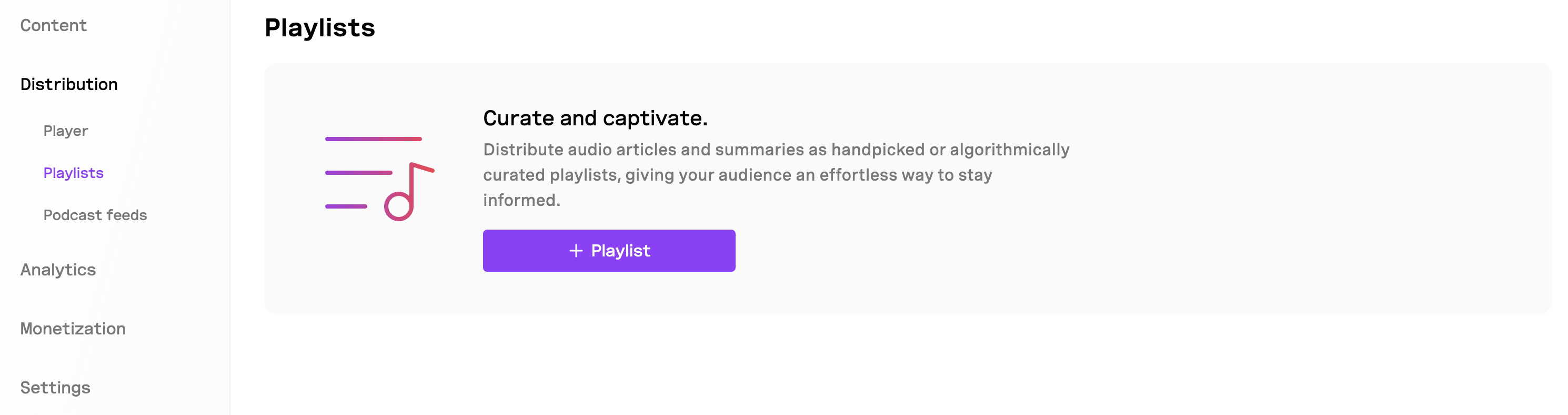
Playlists allow you to group audio or video articles into a single embedded experience for your audience.

There are three types of playlists:

* **Standard** - you manually choose which articles are included.
* **Smart** - articles are included automatically based on rules you define.
* **Dynamic** - allow your audience to create their own playlists from a collection of articles on your website.

<Warning>Dynamic Playlists requires using the JavaScript SDK and being comfortable working in JavaScript. You can find the [full guide](/docs-and-guides/distribution/playlists#dynamic-playlists) below.</Warning>

<img src="https://mintcdn.com/beyondwords/6v-xuioZrdejSSCf/assets/images/new-images/distribution/playlist.png?fit=max&auto=format&n=6v-xuioZrdejSSCf&q=85&s=1fcf27c76cdfdadac849481d2be1bfa0" alt="player" width="2980" height="788" data-path="assets/images/new-images/distribution/playlist.png" />

***

## Create a playlist

1. Go to **Project > Distribution > Playlists**.
2. Click **+ Playlist**.
3. Enter a name.
4. Upload a cover image.
5. Select a playlist type:
   * **Standard**
   * **Smart**
6. Click **Continue**.

You’ll then be redirected into the playlist editor.

<Note>
  Whenever you create a playlist, a podcast feed is created automatically.
</Note>

***

## Curate your playlist

### **Standard playlist**

Use a Standard playlist to manually choose which articles you want in your playlist.

1. Click **Select articles**.
2. Choose the items to include.
3. Click **Save changes**.

***

### **Smart playlist**

Use a Smart playlist to automatically include content based on metadata - such as author, title, or publish date.

<Info>
  By default, a Smart playlist includes all articles until filters are applied.
</Info>

1. Click **Set rules**.
2. Click **+ Rule**.
3. Choose a metadata field (e.g., Title, Author, Published date).
4. Select an operator (`is`, `is not`, `contains`, `wildcard`).
5. Enter a value and click **Apply**.
6. Add more rules if needed (rules are combined with `AND`).
7. Click **Save changes**.

The playlist will update automatically when new matching articles are published.

***

## Embed your playlist on your website

You can embed your playlist as audio or video.

### Embed audio playlist

1. Click **Embed code**.
2. Select:
   * **Audio article**
   * **Audio summary**
3. Copy the embed code.
4. Paste into your website.

<Info>
  **Audio summary** is only available if your article has a summary generated.
</Info>

### Embed video playlist

1. Click **Embed code**.
2. Select:
   * **Video article**
   * **Video summary**
3. Copy the embed code.
4. Paste into your website.

<Info>
  * **Video article** is available only if a video exists for the article.<br />
  * **Video summary** is available only if the article has both a summary and a video.
</Info>

***

## Share your playlist URL

1. Click **Share**.
2. Choose:
   * **Articles**
   * **Summaries**
3. Click **Copy link**.
4. Share anywhere.

<Note>
  Your playlist must be set to **Public** to be viewable.
</Note>

***

## Copy your playlist ID

1. Click the **⋯** menu.
2. Click **Copy playlist ID**.

***

## Dynamic playlists

The playlists experience can be elevated and personalized by allowing your audience to create their own playlists from a collection of articles on your website.

This can be achieved by using our [Player JavaScript SDK](/docs-and-guides/distribution/player/sdk/javascript/getting-started).

<Note>This guide requires you to be comfortable with programming in JavaScript.</Note>

***

### Demo

Here is an interactive demo of a user-generated dynamic playlist that begins with a default set of articles which is totally optional.

You can add or remove articles from this playlist — simulating the user action of bookmarking — and it will be reflected live.

Changes to this demo playlist are stored in your browser for future visits. For real applications, user data should be saved in a database.

You can use your [BeyondWords project](/docs-and-guides/getting-started/concepts#projects) ID to load your articles.

<DynamicPlaylistDemo />

***

### Create a dynamic playlist

The BeyondWords player is quite flexible allowing you to dynamically load multiple articles and create a playlist from them.

The only required fields are the BeyondWords project ID and a list of article indentifiers which could be any of `contentId`, `sourceId`, `sourceUrl` or even another playlist's `playlistId`.

To create a dynamic playlist:

<Steps>
  <Step title="Create a project">
    Create a [project](/docs-and-guides/administration/projects) in BeyondWords. Generate some audio articles using the [Editor](/docs-and-guides/content/editor) or any of the [Integrations](/docs-and-guides/getting-started/overview#integrations).
  </Step>

  <Step title="Set up the player">
    Install the [player script](/docs-and-guides/distribution/player/sdk/javascript/getting-started#how-the-embed-script-works) or the [npm package](/docs-and-guides/distribution/player/sdk/javascript/getting-started#how-npm-installation-works) on your website.
  </Step>

  <Step title="Implement logic to save user data">
    This logic resides on your backend. You will need to store the user saved identifiers of the articles and their type so they can later be retrieved.
  </Step>

  <Step title="Initialize the player on your website">
    On the frontend, the player accepts a `playlist` param as an array of objects which should include one type of identifier each:

    ```js theme={null}
    import BeyondWords from '@beyondwords/player';

    new BeyondWords.Player({
      target: '#beyondwords-player',
      projectID: <ID>, // required
      playlist: [
        {
          // use only one of the following
          sourceId: "<SOURCE_ID>",
          contentId: "<CONTENT_ID>",
          sourceUrl: "<SOURCE_URL>",
          playlistId: <PLAYLIST_ID>,
        },
        // ... more items
      ],
    });
    ```

    It then fetches the requested content from your BeyondWords project and loads them as a playlist.

    Various other settings are also fetched from your project's [player settings](/docs-and-guides/distribution/player/settings) but they can be overriden through the [settings object](/docs-and-guides/distribution/player/sdk/javascript/player-settings) passed to the player.
  </Step>
</Steps>

<Note>You can load articles and playlist only from one project at a time.</Note>