> ## Documentation Index
> Fetch the complete documentation index at: https://docs.beyondwords.io/llms.txt
> Use this file to discover all available pages before exploring further.
# Podcast feeds
> Create, curate, and share audio or video podcast feeds.
## Overview
Podcast feeds allow you to publish audio or video versions of your content to platforms such as Apple Podcasts, Spotify, Google Podcasts, and YouTube.
There are two ways to create your feed:
* **Standard feeds** - you manually choose which articles are included.
* **Smart feeds** - articles are included automatically based on rules you define.
This meanns you can create both one-off curated feeds and automatically updating dynamic feeds.
 ***
## Create a podcast feed
To create a podcast feed:
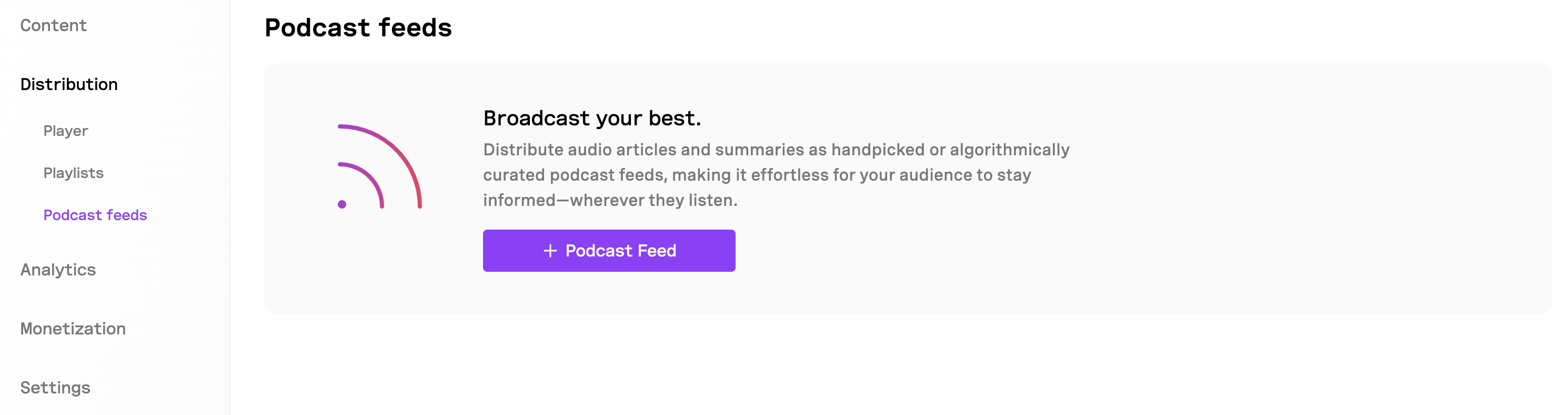
1. Go to **Project > Distribution > Podcast Feeds**.
2. Click **+ Podcast Feed**.
3. Enter a title and description.
4. Upload a cover image.
5. Enter a feed URL (this will be used as your RSS link).
6. Choose a feed type:
* **Standard** (manual curation)
* **Smart** (rule-based curation)
7. Add categories and tags.
8. Add Author and Owner details.
9. Select the feed language.
10. Mark whether your feed contains explicit content.
11. Click **Continue**.
Every podcast feed automatically has a playlist associated with it.
***
## Curate your podcast feeds
### Standard feed
Use a Standard feed when you want to hand-pick which articles become episodes.
To curate:
1. Click **Select articles**.
2. Choose any articles you want to include.
3. Click **Save changes**.
This feed only changes when you update it manually.
### Smart feed
Use a Smart feed to automatically include content based on metadata - such as author, title, or publish date.
By default, a Smart feed includes all articles in your project until rules are added.
To set rules:
1. Click **Set rules**.
2. Click **+ Rule**.
3. Choose a field to filter by (e.g., Title, Author, Published date).
4. Select an operator: `is`, `is not`, `contains`, or `wildcard`.
5. Enter a value.
6. Click **Apply**.
7. Add additional rules if needed (rules use `AND` logic).
8. Click **Save changes**.
Your feed will automatically update whenever new articles match your criteria.
***
## Share your feed
Share your feed as audio or video, in either full or summary format.
### Share as an audio feed
1. Click **Share**.
2. Select **Audio articles** or **Audio summaries**.
3. Click **Copy RSS Feed URL**.
4. Submit or publish the RSS URL to your website or podcast platforms.
### Share as a video feed
1. Click **Share**.
2. Select **Video articles** or **Video summaries**.
3. Click **Copy RSS Feed URL**.
4. Publish your feed to supported platforms.
Your feed must be set to **Public** in order to be accessible externally.
***
## Create a podcast feed
To create a podcast feed:
1. Go to **Project > Distribution > Podcast Feeds**.
2. Click **+ Podcast Feed**.
3. Enter a title and description.
4. Upload a cover image.
5. Enter a feed URL (this will be used as your RSS link).
6. Choose a feed type:
* **Standard** (manual curation)
* **Smart** (rule-based curation)
7. Add categories and tags.
8. Add Author and Owner details.
9. Select the feed language.
10. Mark whether your feed contains explicit content.
11. Click **Continue**.
Every podcast feed automatically has a playlist associated with it.
***
## Curate your podcast feeds
### Standard feed
Use a Standard feed when you want to hand-pick which articles become episodes.
To curate:
1. Click **Select articles**.
2. Choose any articles you want to include.
3. Click **Save changes**.
This feed only changes when you update it manually.
### Smart feed
Use a Smart feed to automatically include content based on metadata - such as author, title, or publish date.
By default, a Smart feed includes all articles in your project until rules are added.
To set rules:
1. Click **Set rules**.
2. Click **+ Rule**.
3. Choose a field to filter by (e.g., Title, Author, Published date).
4. Select an operator: `is`, `is not`, `contains`, or `wildcard`.
5. Enter a value.
6. Click **Apply**.
7. Add additional rules if needed (rules use `AND` logic).
8. Click **Save changes**.
Your feed will automatically update whenever new articles match your criteria.
***
## Share your feed
Share your feed as audio or video, in either full or summary format.
### Share as an audio feed
1. Click **Share**.
2. Select **Audio articles** or **Audio summaries**.
3. Click **Copy RSS Feed URL**.
4. Submit or publish the RSS URL to your website or podcast platforms.
### Share as a video feed
1. Click **Share**.
2. Select **Video articles** or **Video summaries**.
3. Click **Copy RSS Feed URL**.
4. Publish your feed to supported platforms.
Your feed must be set to **Public** in order to be accessible externally.