> ## Documentation Index
> Fetch the complete documentation index at: https://docs.beyondwords.io/llms.txt
> Use this file to discover all available pages before exploring further.
# Filters
> Content filter settings
## Overview
In BeyondWords, you can filter what should be included or excluded from audio generation. This is useful if you want to ensure that certain content is not included in the audio generation process.
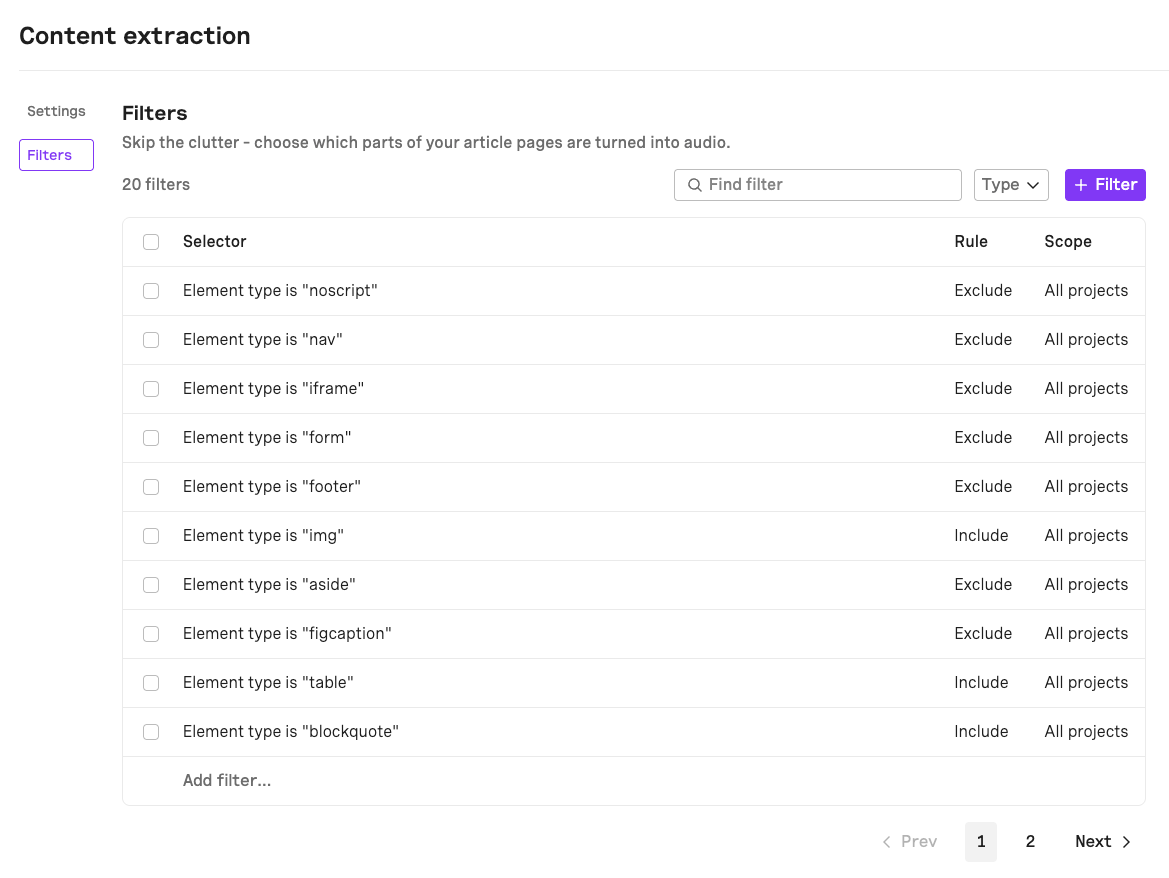 ## Create a filter
To add a filter go to **Settings > Extraction > Filters**.
1. Click **+ Filter**.
2. Select the type of filter you want to create.
3. Enter the filter value.
4. Select whether you want to include or exclude the content.
5. Set the scope of the filter.
6. Click **Save changes**.
Click **+ Filter** to add a new filter.
Select the type of filter you want to create.
> For example, you can select **Type** to filter by HTML element type.
Specify the value you want to filter.
> For example, you can enter **H2** to filter H2 elements.
When specifying elements, classes, or other HTML attributes, provide only the name or identifier. Avoid prefix characters like `<`, `.`, `#`, or any other syntax. The only exception is with `element_xpath`.
Select whether you want to include or exclude the content.
> For example, you can select **Include** to include H2 elements in the audio.
Set where this filter should apply:
* **All projects**: Use this filter in all your projects.
* **This project only**: Use this filter in this project only.
Click **Save changes** to save the filter.
To apply the filter to past articles, go to **Project > Content > Articles** click **⋯** and then click **Regenerate**. Otherwise, the filter will only apply to new articles.
## Filter types
### Element type
Create an **Element type** filter to include or exclude HTML elements based on their tag name.
> Filter content by HTML tag name such as `
## Create a filter
To add a filter go to **Settings > Extraction > Filters**.
1. Click **+ Filter**.
2. Select the type of filter you want to create.
3. Enter the filter value.
4. Select whether you want to include or exclude the content.
5. Set the scope of the filter.
6. Click **Save changes**.
Click **+ Filter** to add a new filter.
Select the type of filter you want to create.
> For example, you can select **Type** to filter by HTML element type.
Specify the value you want to filter.
> For example, you can enter **H2** to filter H2 elements.
When specifying elements, classes, or other HTML attributes, provide only the name or identifier. Avoid prefix characters like `<`, `.`, `#`, or any other syntax. The only exception is with `element_xpath`.
Select whether you want to include or exclude the content.
> For example, you can select **Include** to include H2 elements in the audio.
Set where this filter should apply:
* **All projects**: Use this filter in all your projects.
* **This project only**: Use this filter in this project only.
Click **Save changes** to save the filter.
To apply the filter to past articles, go to **Project > Content > Articles** click **⋯** and then click **Regenerate**. Otherwise, the filter will only apply to new articles.
## Filter types
### Element type
Create an **Element type** filter to include or exclude HTML elements based on their tag name.
> Filter content by HTML tag name such as ``, ``, ``, ``, etc. This is useful for consistently including or excluding specific structural elements across your content.
### Element class
Create an **Element class** filter to include or exclude HTML elements based on their class attribute.
> Filter content by CSS class names such as `.header`, `.footer`, `.aside`, etc. This filter will be applied to any element that contains the specified class, allowing you to target styled components.
### Element ID
Create an **Element ID** filter to include or exclude HTML elements based on their ID attribute.
> Filter content by element IDs such as `#advert`, `#related`, `#navigation`, etc. This is useful for targeting unique elements on a page that you consistently want to include or exclude.
### Element data
Create an **Element data** filter to include or exclude HTML elements based on their data attributes.
> Filter content by data attributes such as `data-include`, `data-exclude`, etc. This allows you to add custom data attributes to your HTML specifically for controlling audio generation.
### Element XPath
Create an **Element XPath** filter to include or exclude HTML elements based on an XPath expression.
> Filter content using XPath expressions such as `//*[@role='dialog']`. This provides advanced targeting capabilities for complex document structures where other filter types may not be sufficient.
### Value
Create a **Value** filter to include or exclude HTML elements based on the text they contain.
> Filter content by searching for specific text such as "Sponsored". This filter will be applied to any element that contains the specified text value, allowing you to target elements based on their content rather than structure.