> ## Documentation Index
> Fetch the complete documentation index at: https://docs.beyondwords.io/llms.txt
> Use this file to discover all available pages before exploring further.
# VAST
> Connect to an ad server via VAST to serve ads through the BeyondWords player
## Overview
Use VAST to serve ads through the BeyondWords player.
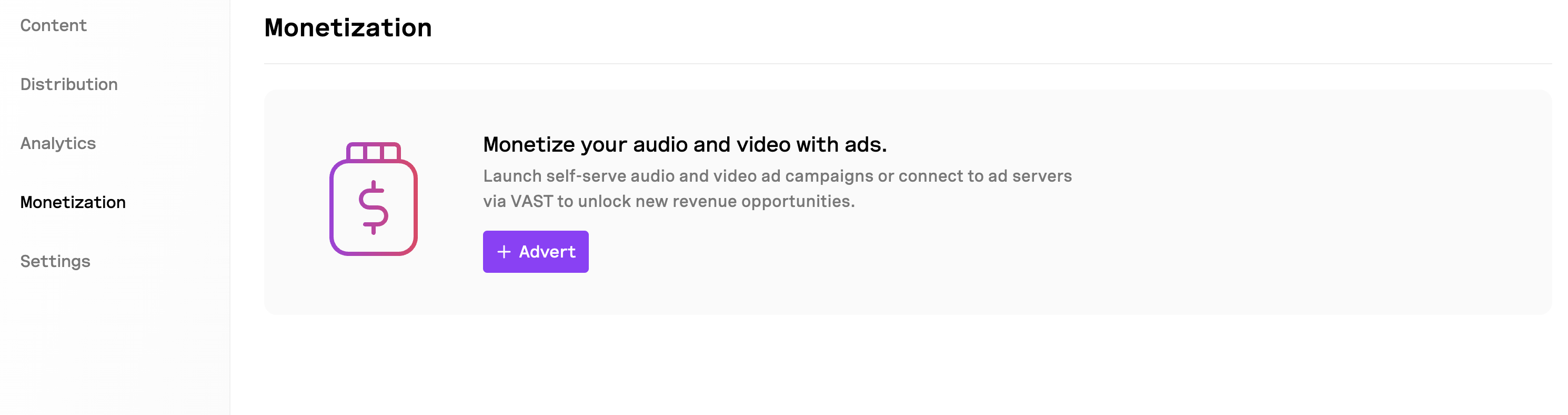 Audio ads will play on audio articles or summaries. Video ads will play on video articles or summaries.
## Create a VAST ad
To create a Custom ad:
1. Go to **Project > Monetization**.
2. Click **+ ad**.
3. Select **VAST**.
4. Enter a name for the ad. This will not be visible to users.
5. Set the ad placement: pre-roll, mid-roll, or post-roll.
6. Set the ad schedule (optional).
7. Click **Save changes**.
Having issues setting up a VAST ad? Contact [support](mailto:support@beyondwords.io) for help.
## Enable or disable a VAST ad
To enable or disable a VAST ad:
1. Go to **Project > Monetization**.
2. Toggle the ad to **Enabled** or **Disabled**.
## Edit a VAST ad
To edit a VAST ad:
1. Go to **Project > Monetization**.
2. Click the ad you want to edit.
3. Click the **⋯** button.
4. Select **Edit**.
5. Make the necessary changes.
6. Click **Save changes**.
## Delete a VAST ad
To delete a VAST ad:
1. Go to **Project > Monetization**.
2. Click the ad you want to edit.
3. Click the **⋯** button.
4. Select **Delete**.
## Ad metrics
VAST ads are not tracked by BeyondWords.
Audio ads will play on audio articles or summaries. Video ads will play on video articles or summaries.
## Create a VAST ad
To create a Custom ad:
1. Go to **Project > Monetization**.
2. Click **+ ad**.
3. Select **VAST**.
4. Enter a name for the ad. This will not be visible to users.
5. Set the ad placement: pre-roll, mid-roll, or post-roll.
6. Set the ad schedule (optional).
7. Click **Save changes**.
Having issues setting up a VAST ad? Contact [support](mailto:support@beyondwords.io) for help.
## Enable or disable a VAST ad
To enable or disable a VAST ad:
1. Go to **Project > Monetization**.
2. Toggle the ad to **Enabled** or **Disabled**.
## Edit a VAST ad
To edit a VAST ad:
1. Go to **Project > Monetization**.
2. Click the ad you want to edit.
3. Click the **⋯** button.
4. Select **Edit**.
5. Make the necessary changes.
6. Click **Save changes**.
## Delete a VAST ad
To delete a VAST ad:
1. Go to **Project > Monetization**.
2. Click the ad you want to edit.
3. Click the **⋯** button.
4. Select **Delete**.
## Ad metrics
VAST ads are not tracked by BeyondWords.