

- Direct ads: Upload and manage your own ads for sponsorships, house ads, subscription messaging, and other directly sold campaigns
- Programmatic ads: Serve ads automatically through VAST-compatible ad networks, such as Google Ad Manager
Launch direct ads
1
Start a new campaign
Go to Monetization in your project dashboard, then click + Ad.
2
Upload your ad
Upload the audio or video file to use as your ad. We recommend that ads last between 10 and 15 seconds.
- Audio: MP3 or WAV, max. 50MB
- Video: MP4, max. 150MB
3
Enter ad details
Enter the following ad details:
- Title: The internal name of the ad. This is not shown to users.
- Placement: Whether the ad should play pre-roll, mid-roll, or post-roll (before, in the middle of, or after the main content)
- Schedule (optional): When the campaign should start and end, based on your project’s timezone. Leave blank to start immediately and continue until canceled.
- Companion URL (optional): A clickable link displayed during playback
- Companion image (optional): An image displayed during playback (large player only)
- Player branding (optional): The background, icon, and text colors to display in the audio player during playback, for light mode and/or dark mode. If not set, the default player settings will be used.
- Video player theme (optional): The background, icon, and text colors to display in the video player during playback. If not set, the default player settings will be used.
If all placements are enabled, playback follows this order: Intro → Pre-roll ad → Main content → Mid-roll ad → Main content → Post-roll ad → Outro.Mid-roll ads are inserted between segments at approximately the halfway point of the main content.
4
Preview your ad
Use the player preview to see how the ad appears and plays within your latest content.
5
Save changes
Click Save changes. The ad will appear in your monetization dashboard and play according to your settings.
Launch programmatic ads
1
Start a new campaign
Go to Monetization in your project dashboard, click + Ad, then select the VAST tag tab.
2
Enter ad details
Enter the following ad details:
- Title: The internal name of the ad. This is not shown to users.
- Tag URL: The VAST tag URL provided by your ad network
- Placement: Whether the ad should play pre-roll, mid-roll, or post-roll (before, during, or after the main content)
- Schedule (optional): When the campaign should start and end. Leave blank to start immediately and continue until canceled.
If all placements are enabled, playback follows this order: Intro → Pre-roll ad → Main content → Mid-roll ad → Main content → Post-roll ad → Outro.Mid-roll ads are inserted between segments at approximately the halfway point of the main content.
3
Save changes
Click Save changes. The ad will appear in your monetization dashboard and play according to your settings.
Manage ads
You can manage ads in the Monetization section of your project dashboard.View ad information
View ad information
The table in the Monetization section of your project dashboard displays the following information for each ad:
- Title: The name of the ad
- Type: Direct or VAST
- Format: Audio or video
- Status: Whether the ad is running or paused
- Plays: The number of times the ad was played. We count one play per session.
- Completion rate: The percentage of ad plays that reached completion
- Duration: The duration of the ad
Disable an ad
Disable an ad
To disable an ad across your entire project:
- Go to the Monetization section of your project dashboard
- Locate the ad in the table
- Switch the corresponding toggle off
- Open the content item in the Editor
- Go to the Info tab
- Scroll down to Play ads and switch the toggle off
- Generate or Regenerate your content
Edit an ad
Edit an ad
To edit an ad:
- Go to the Monetization section of your project dashboard
- Click ••• → Edit alongside the relevant ad
- Make your changes, then click Save changes
Delete an ad
Delete an ad
To delete an ad:
- Go to the Monetization section of your project dashboard
- Click ••• → Delete alongside the ad
- Click Delete to confirm
- Go to the Monetization section of your project dashboard
- Select ads using the checkboxes
- Click Delete → Delete all
Ad analytics
Ad analytics are available for direct ads only. The metrics are updated every few minutes. To view ad analytics, go to the Monetization section of your project dashboard. The filters at the top of the page let you control the date range, content variant (articles or summaries), and device type shown in your analytics data. At the top of the page, you’ll see aggregated metrics for all ads in your project. To view metrics for a specific ad, scroll down to the table and select the graph icon alongside the relevant ad. You can view the following metrics:- Plays: The number of ad playback sessions where the audio or video ad started. We count one play per ad per player session, not every time a user pauses and resumes.
- Completion rate: The percentage of ad plays that reached completion
- Completions: The number of ad plays that reached completion
- Click-through rate: The percentage of ad plays that generated a companion URL click
- Clicks: The number of clicks on the companion URL. We count one click per companion URL per player session.
Ad playback experience
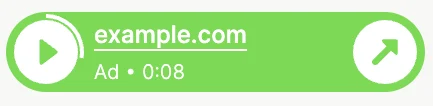
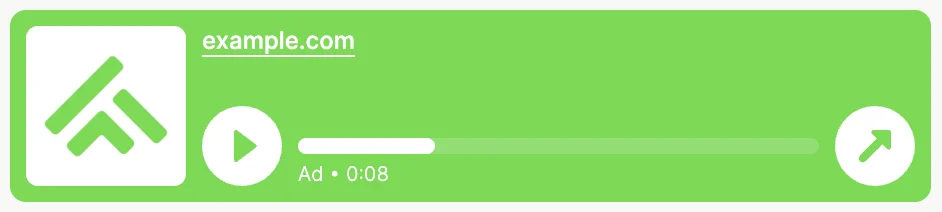
During ad playback, the audio player displays:- Play/pause controls
- “Ad” label
- Playback time remaining
- Playback bar (without seeking controls)
- Clickable companion link and arrow icon (optional)
- Ad title (optional, large player only)
- Companion image (optional, large player only)
- Default player colors, unless overridden by the ad settings

FAQs
Can I run multiple ads?
Can I run multiple ads?
You can run multiple ads at the same time, but only one ad can play per placement position. If multiple ads use the same placement (e.g., pre-roll), the player will select one ad to play for each request.Programmatic ads are prioritized over direct ads. Direct ads that have already played during the current listening session will not be replayed within the same session.
Can I enable ads for specific content items?
Can I enable ads for specific content items?
No, you can’t enable ads for specific content items. However, you can:
- Disable ad playback for specific content items via the Info tab in the Editor
- Manually insert ad creatives into individual content items via the Editor
Are ads included in playlists?
Are ads included in playlists?
Yes, ads are supported in playlists. Ads will play alongside each audio or video item according to their placement settings.
Are ads included in podcast feeds or downloads?
Are ads included in podcast feeds or downloads?
No, ads are only served through the BeyondWords player, so are not included in podcast feeds or downloaded files.If you want ads to become part of the main content and so appear across all distribution channels, insert them through the Editor.
Can users skip ads?
Can users skip ads?
No, users cannot skip ads. Skip controls are hidden during ad playback, and the ad playback bar does not allow seeking.